Flowers
339 × 512 → 677 × 1024


Increase the resolution of a small photo to a 1K long edge with AI. Upload a PNG, JPG or WebP image under 1,024 pixels, compare the generated result, and review changes before downloading.
PNG, JPG or WebP · one photo at a time
Up to 18 MB · longest edge under 1,024 px 20 attempts per IP per day · 5 per browser · resets at 00:00 UTCGenerative enhancement can change faces, text, textures or framing. This is not pixel-preserving upscaling. Compare the whole image before downloading.
Your photo is sent to the image service only after you start processing.
Generative enhancement can change faces, text, textures or framing. This is not pixel-preserving upscaling. Compare the whole image before downloading.
Each openly licensed image was reduced to a 512 px longest edge, then processed once with an AI image-generation model. Results are generated examples, not recovered original detail. Check faces, product details and lettering against the source.
339 × 512 → 677 × 1024
512 × 342 → 1024 × 682
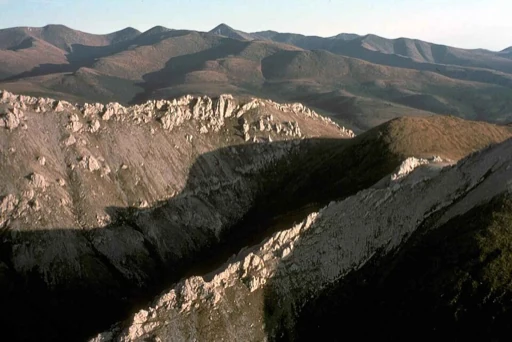
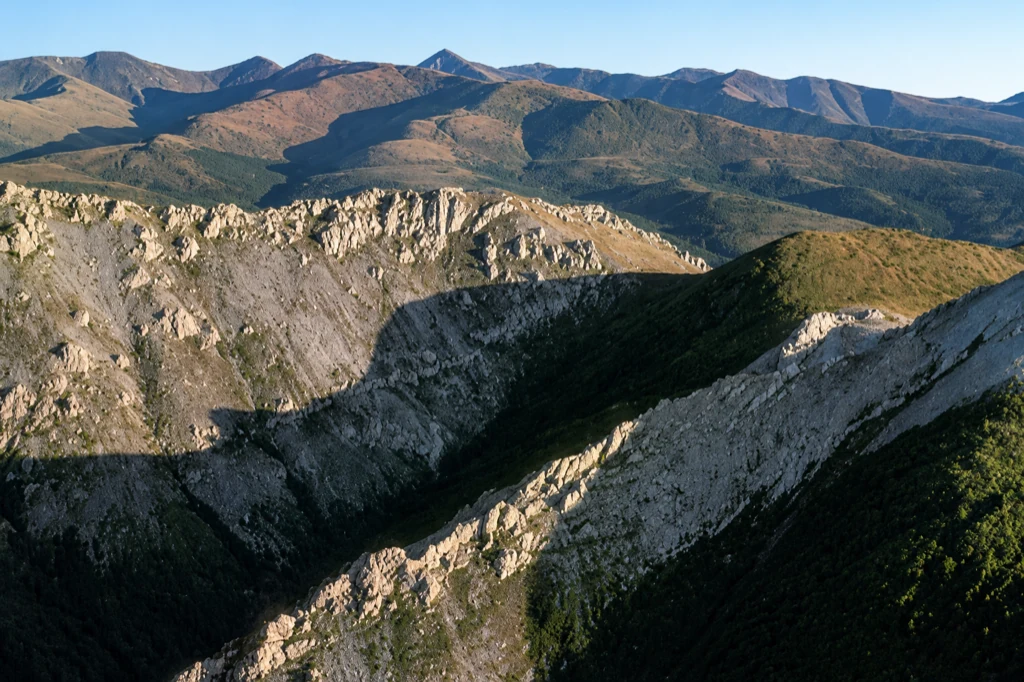
512 × 341 → 1024 × 681
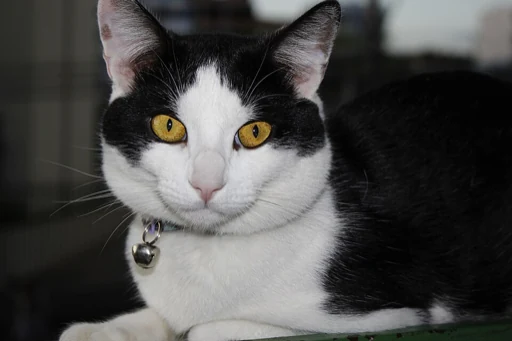
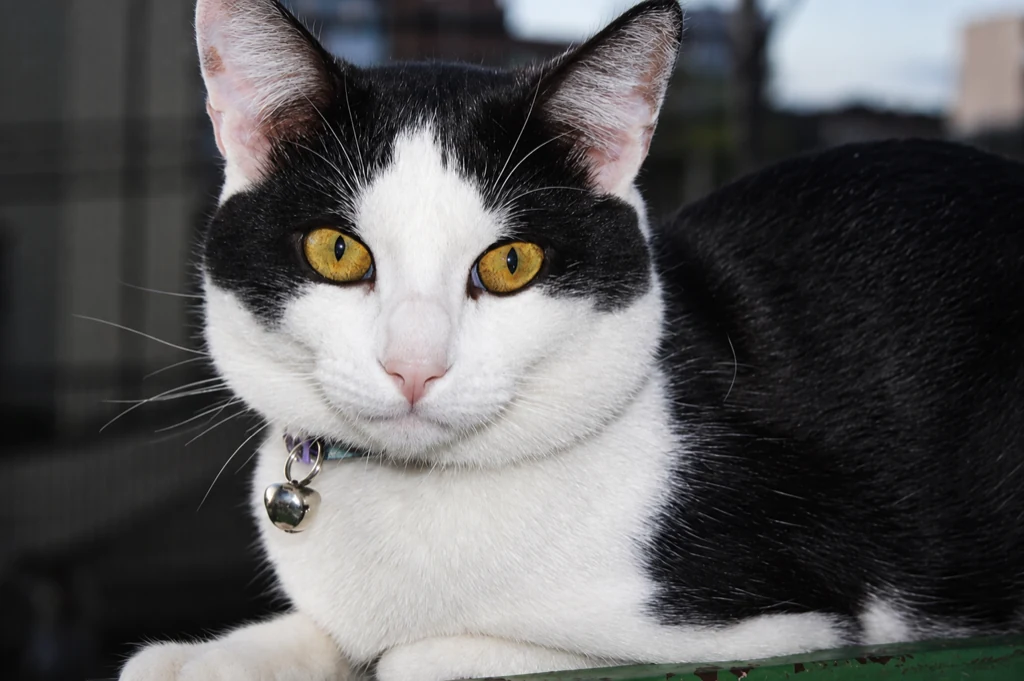
512 × 367 → 1024 × 733
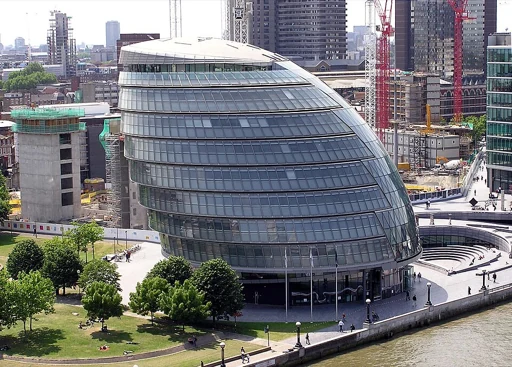
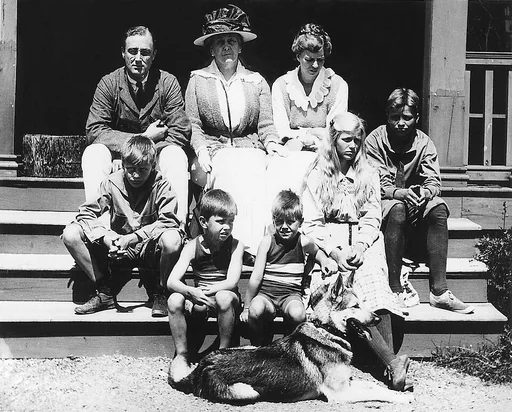
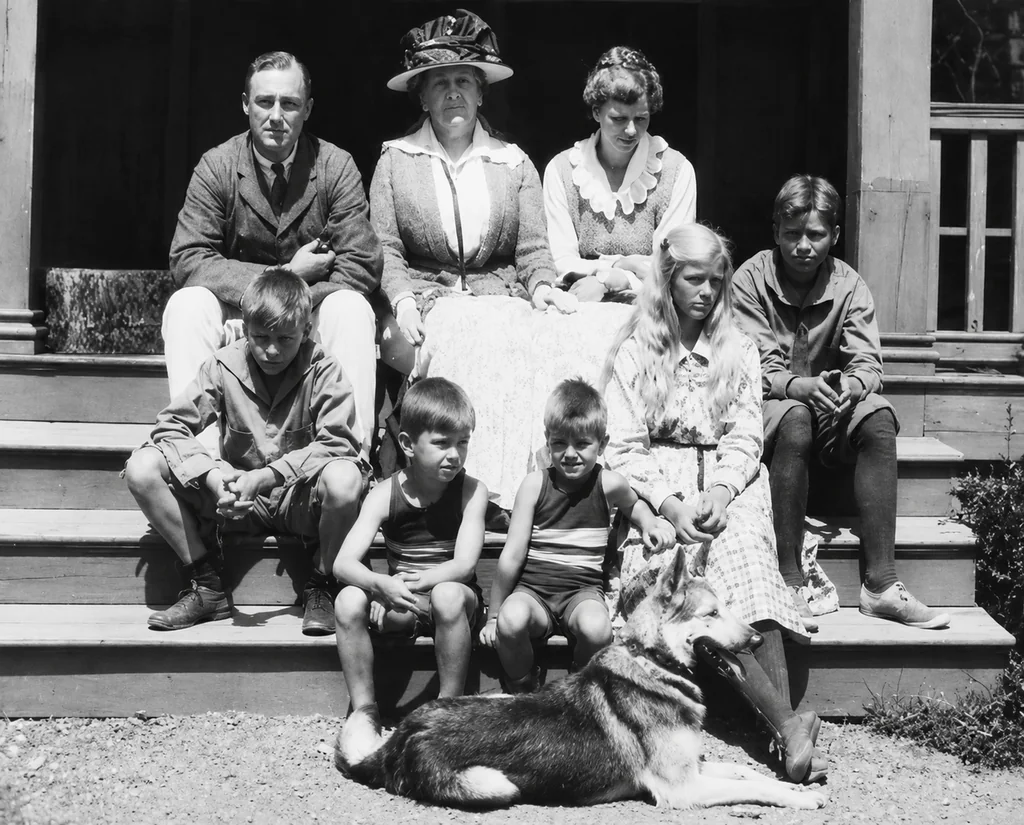
512 × 412 → 1024 × 825
Old prints · verify faces against the source
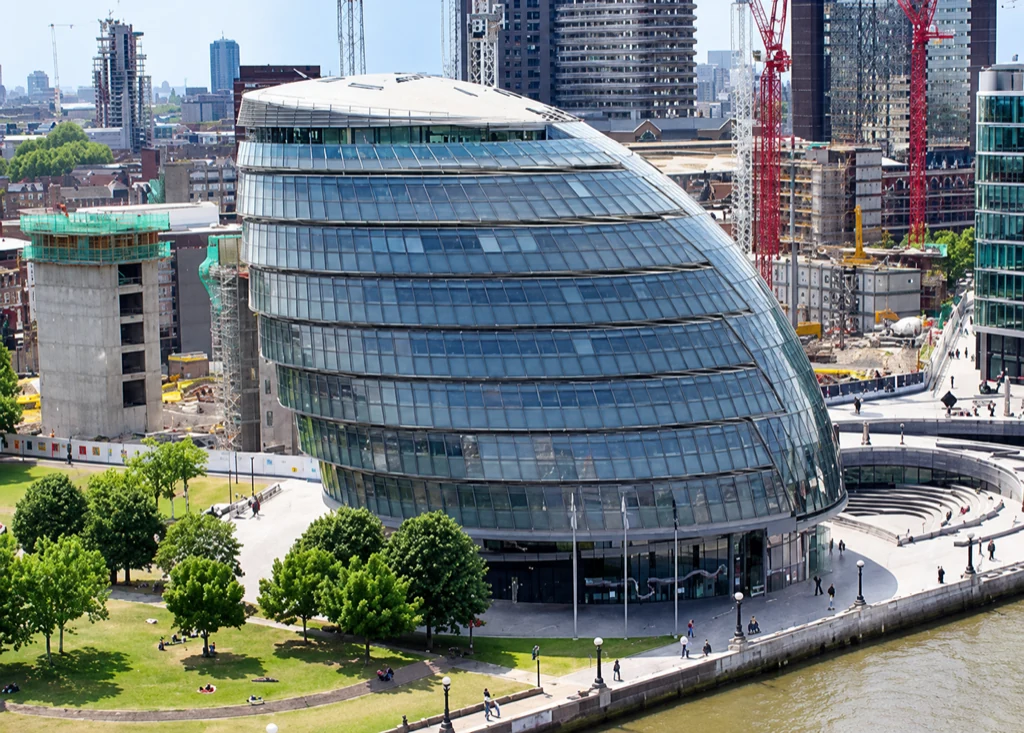
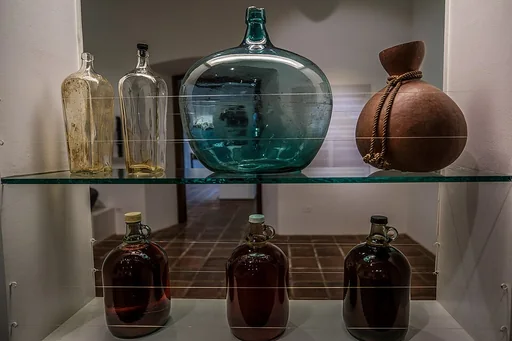
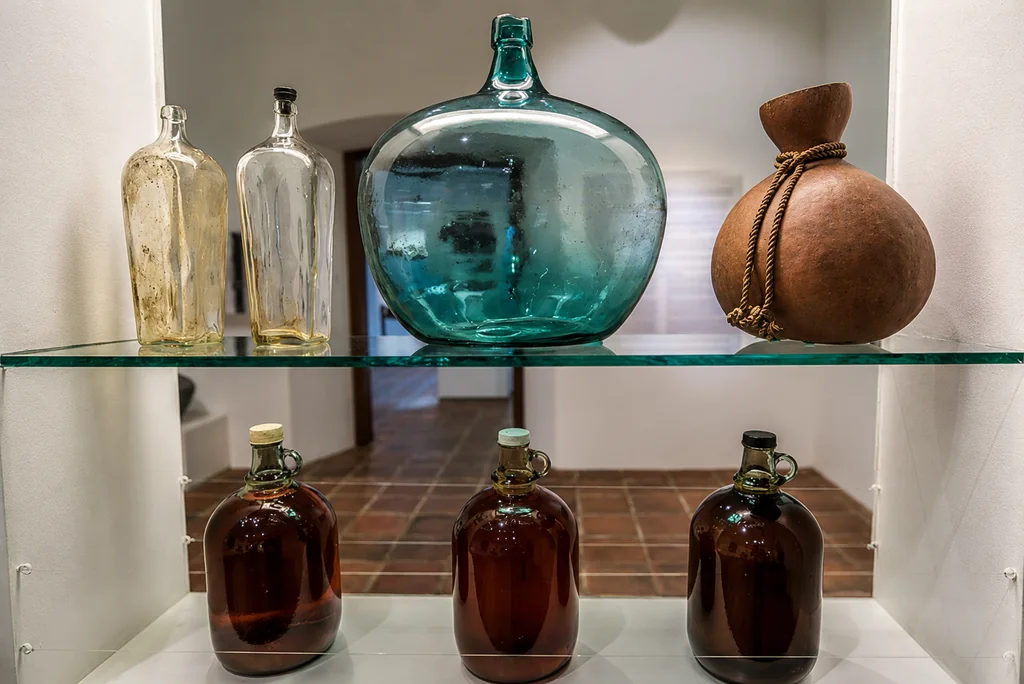
512 × 341 → 1024 × 684
Product display · inspect shape, labels and color
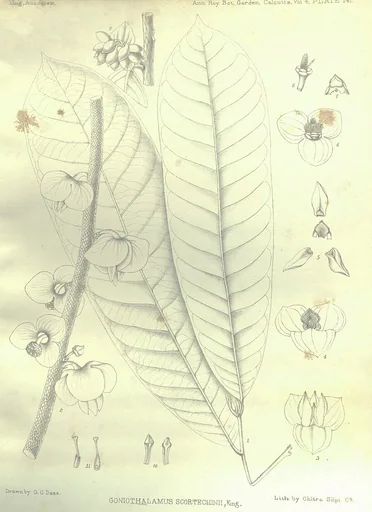
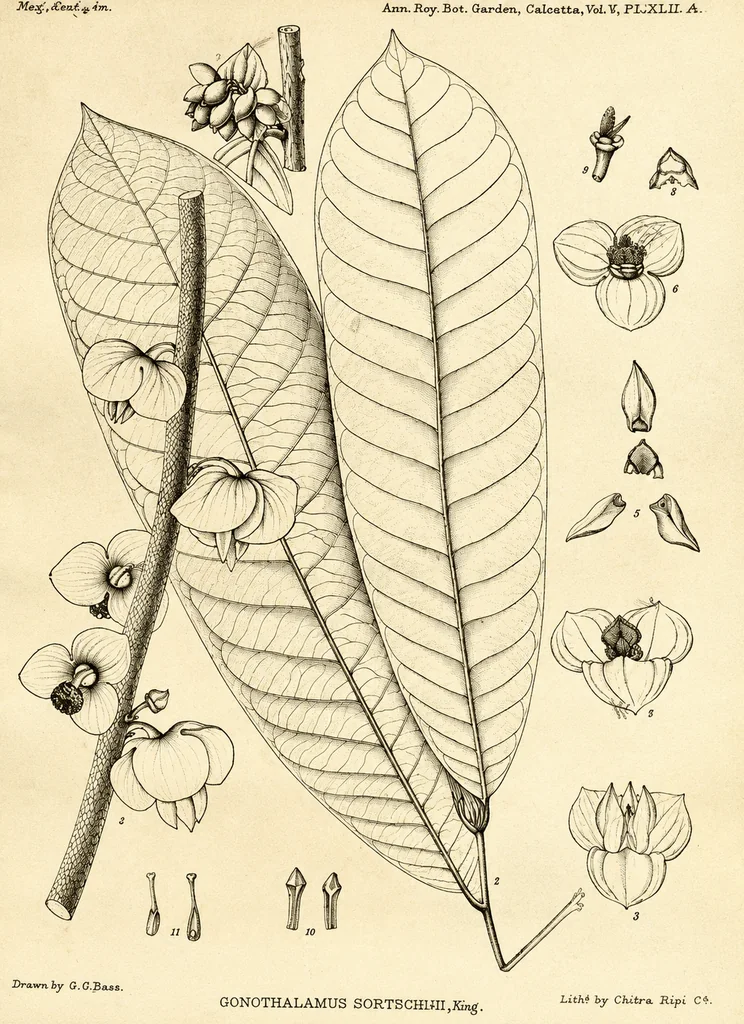
372 × 512 → 744 × 1024
Scanned artwork · check fine lines and lettering
FIELD GUIDE
Generative enhancement can create a sharper, larger-looking photo, but it redraws image content rather than recovering missing pixels. Use this guide to choose a suitable source, compare the result and decide whether it is safe to keep.
The tool accepts PNG, JPG and WebP photos whose longest edge is below 1,024 pixels. It corrects photo orientation and shows the dimensions before processing. The selected image stays in the browser for preview; it is sent to the image service only after you choose Generate 1K enhancement. Keep the source file separately so you can compare or return to it later.
A generative model estimates plausible detail from the visible image. It cannot inspect the original scene or retrieve texture that was never captured. Skin, hair, fur, leaves, lettering, building edges and distant objects may be newly rendered. The result can look clearer while being less faithful to the source.
This workflow is useful for a preview or casual image when a generative interpretation is acceptable. It is not a pixel-preserving restoration method and should not be treated as evidence that fine details, identity or text stayed unchanged.
Choose one image and inspect its full frame and displayed pixel dimensions. If the longest edge is already 1,024 pixels or larger, the page will ask you to use another workflow instead. Check that the image is the right file and that it does not contain information you cannot share with the image provider.
After generation, compare the whole original with the result. Look first at the frame: subject position, crop, horizon, silhouette and aspect ratio. Then inspect fine areas such as eyes, fur, leaves, small structures and text. A sharper edge is not automatically a more accurate edge. If the aspect ratio differs, the page shows both images side by side instead of stretching them into alignment.

The model may return different dimensions or framing from the source. The tool scales the generated image so its longest edge is at most 1,024 pixels, preserving the generated aspect ratio. A portrait photo therefore does not become a square, and no pixels are added by cropping to a fixed square. Check the dimensions shown beside the result.
The cases below use open-licensed photographs reduced to 512 pixels and processed once with an AI image-editing model. Each result is a single sample, not a repeatability or quality guarantee. Source and result images are different renderings; use the source links for the original licensing terms and do not infer that the AI output reproduces the photographer’s exact details.
AI image upscaler
Choose a PNG, JPG or WebP photo whose longest edge is under 1,024 pixels. Preview it, start the enhancement, compare the generated result with the original, then download it if the changes suit your use.
No. Generative upscaling draws plausible detail from the visible image; it cannot recover pixels that were never captured. Check faces, product features and text against the source.
This tool allows up to twenty enhancement attempts per source IP per UTC day, with an additional five-attempt browser limit. People sharing a public IP share the allowance. Submitted attempts include failures and timeouts; local previews and downloads do not count. The count resets at 00:00 UTC.
CREATOR WORKFLOWS