Image repair · Field notes · FIELD GUIDE
Choosing a repair area: edges, size and context
A precise selection helps the repair fit the surrounding picture. It also defines which original pixels the tool is allowed to replace.
Start with the right source
Use the closest available copy of the original file. Repeated resizing and compression can spread block boundaries or create halos that are hard to separate from the subject. The tool accepts one PNG, JPG or WebP, previews it locally and normalizes its orientation. Selecting a file does not begin generation. Review the picture before you send it, and use only images you are allowed to edit and share with the processing provider.
Include the entire overlay
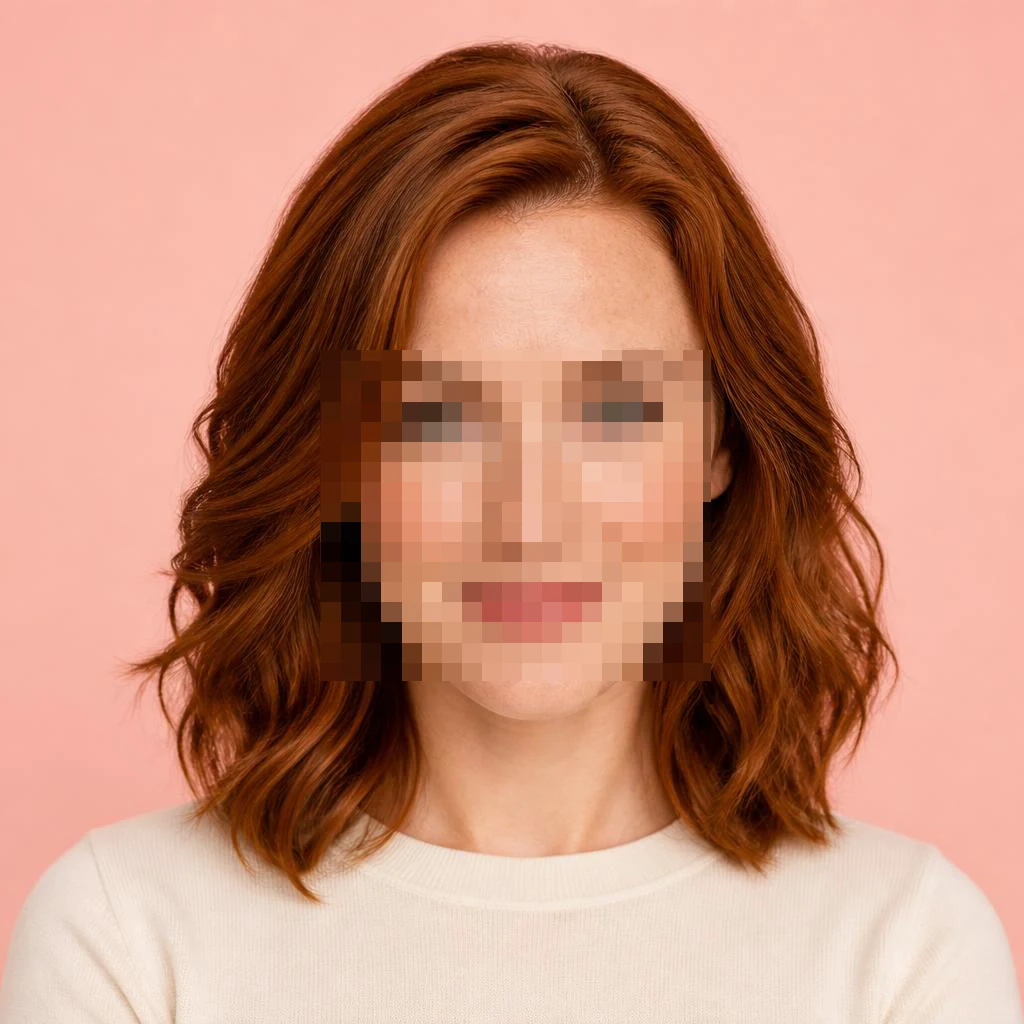
Draw a rectangle around every mosaic block or solid patch you want replaced. Include the complete softened transition around a blur, with a narrow extra margin. If the box stops inside the mosaic, untouched blocks can remain at the edge. If it extends far into clear content, the model can replace detail that did not need repair. The right selection is defined by the visible defect rather than by a fixed percentage of the picture.
Keep useful context visible
Hair, clothing, skin transitions, horizon lines, rocks and shadows help describe the neighborhood of the patch. Keep those cues visible outside the rectangle whenever possible. A face covered from forehead to chin leaves much less information than a short bar over the eyes. A model may still generate a coherent result, but that coherence comes from inference. Enlarging the box cannot retrieve missing evidence; it often gives the model more freedom to invent it.
Use separate boxes for separate patches
The page supports up to eight rectangles. Mark separated patches individually instead of drawing one large rectangle over the clear space between them. The numeric X, Y, W and H controls express position and dimensions as percentages of the normalized image. They provide a keyboard alternative to dragging and a way to adjust a box on a small screen. Undo removes the last selection, while clear removes all selections before generation.
Describe context without declaring hidden facts
The optional instruction is useful for texture or continuity: continue the rocky ridge, keep the visible hairline, or match the surrounding indoor light. Avoid supplying an invented name, number or identity and then treating the resulting confident image as a discovery. Context guides generation; it does not validate what was hidden. The image, region coordinates and your note are sent to the image service only when you start processing.
Check boundaries at larger size
After generation, compare the entire frame and then open the larger original/result view. Look for a seam, a duplicated edge, a shifted pupil or a shadow that no longer follows the visible surface. The tool resizes a compatible output to the input dimensions and copies only the selected rectangles. It rejects a result with a materially different aspect ratio rather than stretching a new composition into place. Even a correctly sized output can contain geometry changes inside the selection.
Regenerate from the original
A new version always starts from the original normalized input and the current selection. Earlier successful versions remain available in the selector, so you can compare and download one you prefer. Do not start another paid request merely because the first one is taking time; processing can take several minutes and the page does not retry automatically. If the service times out, the outcome may be unknown. Review your current results before deliberately making another request.
Know when to use another approach
Whole-image low resolution is better matched to the image enhancer, while a visible logo or text overlay belongs in watermark removal. A heavily censored identity, serial number or document cannot be established by a generative repair. Obtain the uncensored source for factual use. Keep the original when exporting the AI version, and explain the generated edit if viewers could mistake it for a faithful photograph. The goal is a usable visual completion whose uncertainty remains clear.